In SafariOffice, you can upgrade listings to Premium to get extra benefits and more visibility across SafariOffice, SafariBookings, and SafariBuddy.
This article explains how to manage your subscriptions.
You can upgrade a FREE listing to a Premium listing at any time.
If you do not already have a subscription, you will need to create one the first time you do this. If you later want to upgrade other listings, you can add them to the same subscription, with second and later listings costing less than the first one. You can also create a separate subscription if you need a different billing plan or invoice address.
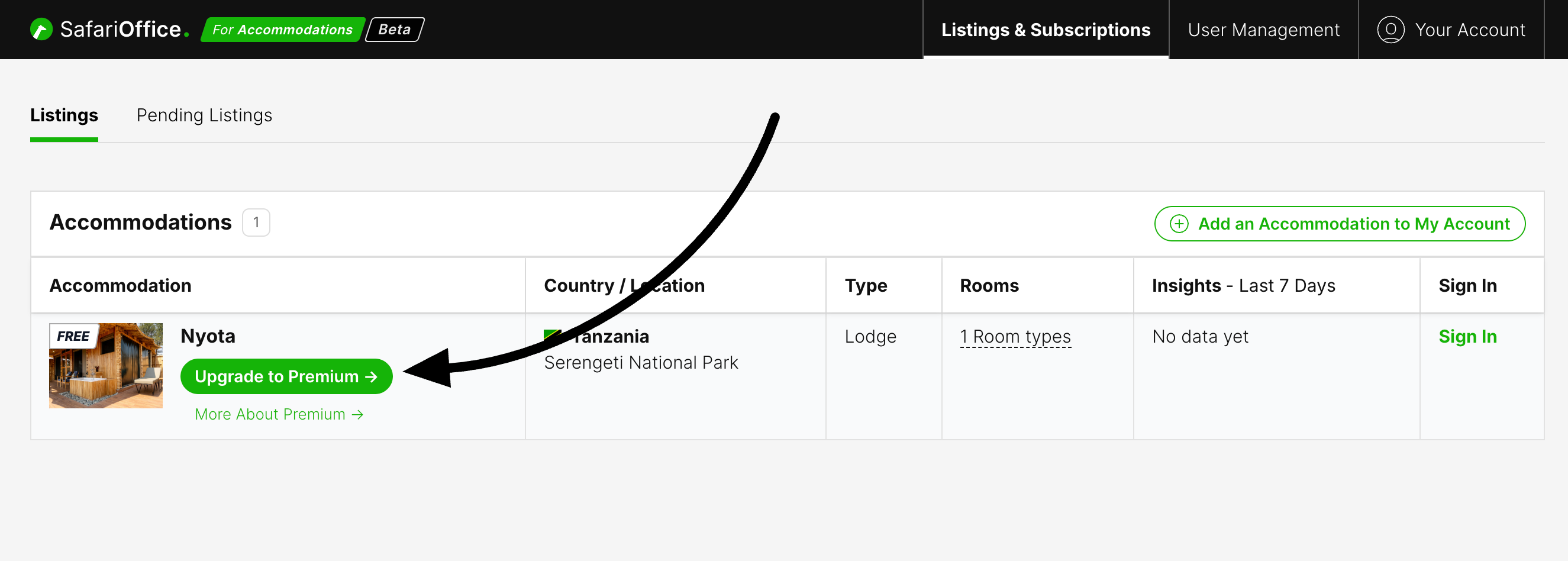
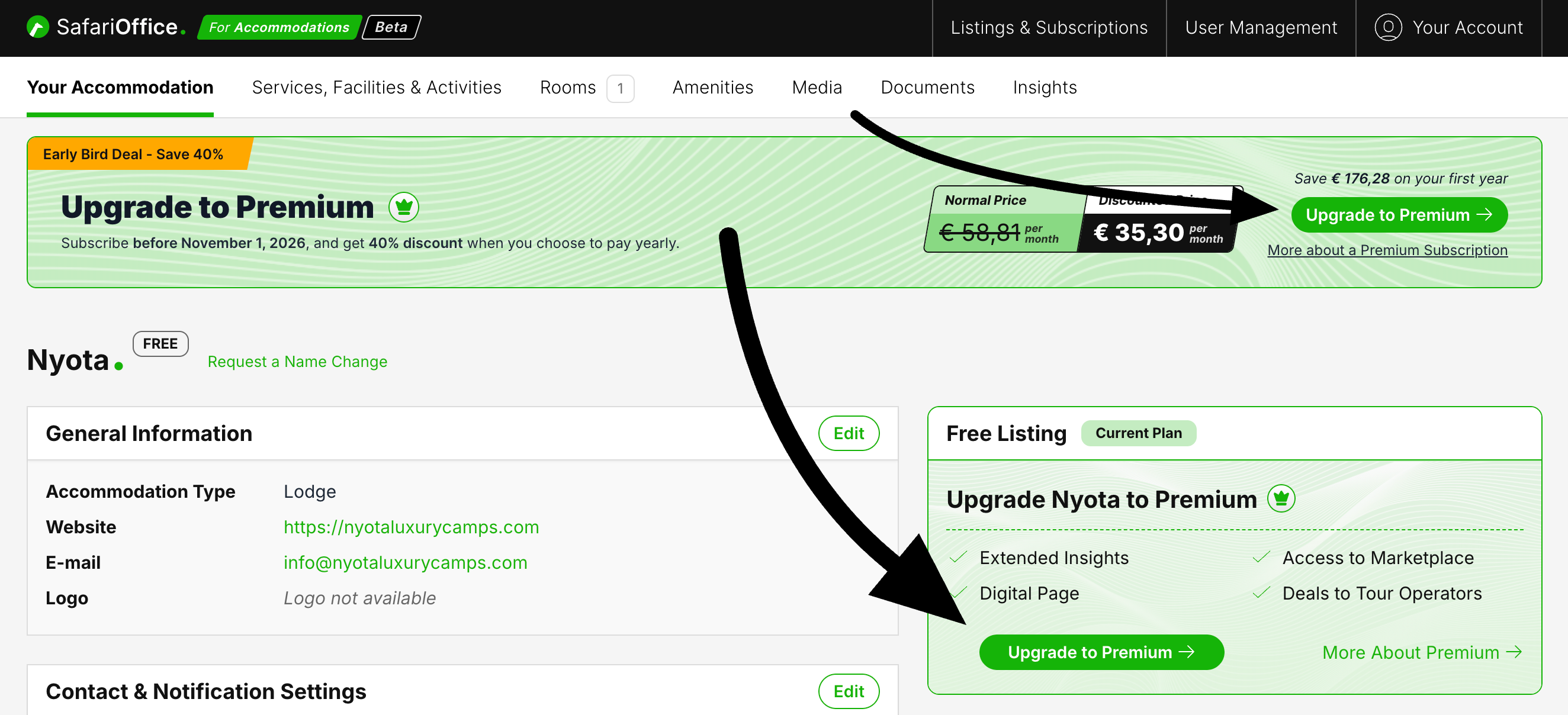
Click "Upgrade to Premium" on any FREE listing to start.
You can find this button in the "Listings & Subscriptions" tab or in the accommodation details view on the first tab, "Your Accommodation," at the top right.
In Your Listings Tab
In Your Accommodations Tab
We offer yearly plans with a 15% discount and monthly plans. Choose the one that works best for you. You can switch plans later if needed.

You can add billing details for each subscription. If you want a tax-valid invoice and the correct tax rules applied, you must enter a valid TAX format for your country.
We currently support credit cards, debit cards, and PayPal. Available options depend on your country.

Once you have at least one subscription, you will find it under Listings & Subscriptions > Subscription Manager.
There you can view and manage all subscription details.
Click Cancel Subscription at the top right of your subscription to cancel it starting from the next renewal date.

Until that renewal date, all listings in the subscription will stay Premium.
From Subscription Manager, click +Add Accommodation to This Subscription.

You will then see all listings you can access that are still on a FREE plan. Select the listings you want to add to the subscription. You will see the total price, pro-rated if needed. Once confirmed, these listings will become Premium and get access to the related features and benefits.
If you want to remove one listing from a Premium subscription because you no longer manage or own the property, click the three green dots in Subscription Manager and choose Remove from Subscription. The listing will be downgraded on the next renewal date and will not be charged. The renewal date will be shown after you do this. You can undo this until the renewal date.
You can find invoices in the Invoicing tab of your subscription and in your email when a new or renewed subscription is charged.
By default, the person who creates the subscription is the only subscription manager. In Subscription Manager, you can invite other subscription managers if needed. They can view invoices, manage payment methods, add and remove listings, and cancel subscriptions too.
You can switch between yearly and monthly plans at any time. The change will happen on the next renewal date. You can find this at the top of your subscription, where your current pricing plan is shown. If you switch plans, the date of the change will appear below the current plan.
