Your Co-branded Digital Page is a ready-to-share webpage for your property. Tour Operators and Agents add it to their itineraries, send it to travelers on WhatsApp or by email, and embed it on their own websites, always with their own branding next to yours. You decide how your property is presented; they get a sales tool ready to send.
The Co-branded Digital Page is included with a Premium Listing. See a demo →
Sign in to your User Account and open your listing.
Click Manage Digital Page in the Premium Listing box on your listing dashboard.
This opens the Digital Page editor.
The editor is divided into four areas:
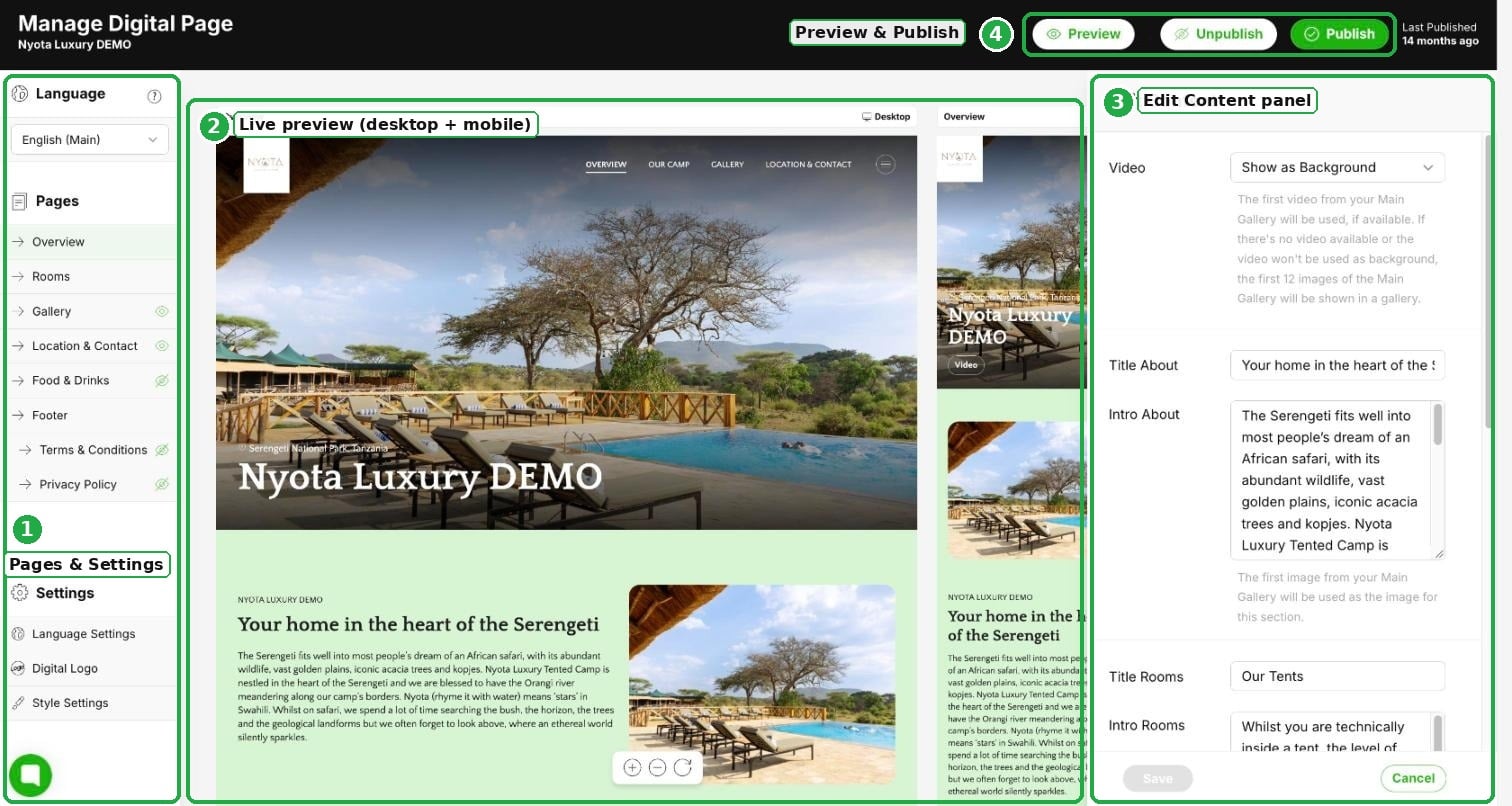
Pages & Settings (left): switch between your Language versions, open your Pages (such as Overview, Rooms and Gallery) and adjust Settings like your Digital Logo. Use the eye icon next to a page to show or hide it.
Live preview (center): a real-time preview of your page on desktop and mobile, side by side.
Edit Content panel (right): when you select a page on the left, this panel shows its fields. Update texts (like "Title About" or "Intro Rooms"), choose which images or videos to display, and set sections to "Show" or "Hide".
Preview & Publish (top right): view the full page and make your changes live.
Click Save at the bottom of the Edit Content panel to store your updates.
Click Preview at the top right to view the full page as a partner would see it.
When you are ready for the changes to go live, click the green Publish button. Use Unpublish to take your page offline.

Setting the brand design: add your logo.
Set up the homepage: intro text, video background and highlights.
Editing the room page: how your rooms are presented.
Updating Gallery page settings: choose and order your images.
About Food & Drink page: show your dining and menus.
Terms & Conditions and Privacy pages: link your policy documents.
Using the languages: present your page in other languages.
What is a Premium Listing
Learn about the benefits of a Premium Listing. Discover how upgrading allows you to create a branded Premium Digital Page that Tour Operators and Agents can share directly with their clients.
Basic vs. Premium Listings: From Directory Presence to Active Sales Engine
A quick guide to the differences between Basic and Premium Listings, so you can choose the right plan for your property.
